
7.8 KiB
🛡️ ClashX Pro Configuration Guide
📱 Software Overview
ClashX Pro is a powerful macOS proxy software designed specifically for Mac users as a modern network proxy tool. It features an intuitive user interface and rich functionality, supporting multiple proxy protocols to provide users with stable and efficient network proxy services.
✨ Key Features
| Feature | Description |
|---|---|
| 🔒 Multi-Protocol Support | Shadowsocks (SS), V2Ray (VMess), Trojan, HTTP/HTTPS, SOCKS5, SOCKS5 over TLS |
| 🎯 Smart Routing | Rule-based traffic splitting, geo-location routing, domain matching, etc. |
| 📊 Real-time Monitoring | Traffic statistics, connection monitoring, node latency testing |
| 🔄 Auto Update | Subscription link auto-update for node information |
| 🛠️ Advanced Configuration | Custom rules, proxy chains, load balancing, etc. |
| 🖥️ System Integration | Native macOS design with system proxy settings support |
🔧 System Requirements
| Item | Requirement |
|---|---|
| Operating System | macOS 10.15 or higher |
| Device Type | MacBook, iMac, Mac Pro, Mac mini |
| Network Environment | Stable internet connection |
| Storage Space | At least 50MB available space |
📥 Software Download
🌐 Official Download Links
| Download Source | Link | Notes |
|---|---|---|
| Official Site | ClashX Pro Official | Recommended |
| Backup Address 1 | Backup Download | Stable and reliable |
| Backup Address 2 | KrakenFiles | International server |
💡 Download Tips: We recommend downloading from the official address to ensure software security and feature completeness.
⚙️ Detailed Configuration Tutorial
📋 Prerequisites
Before starting configuration, please ensure you have:
- ✅ Downloaded and installed ClashX Pro
- ✅ Obtained a valid proxy service subscription link or configuration file
- ✅ Verified normal network connectivity
🔧 Step One: Software Installation
1.1 Download Installation Package
Obtain the ClashX Pro installation package from the download addresses above.
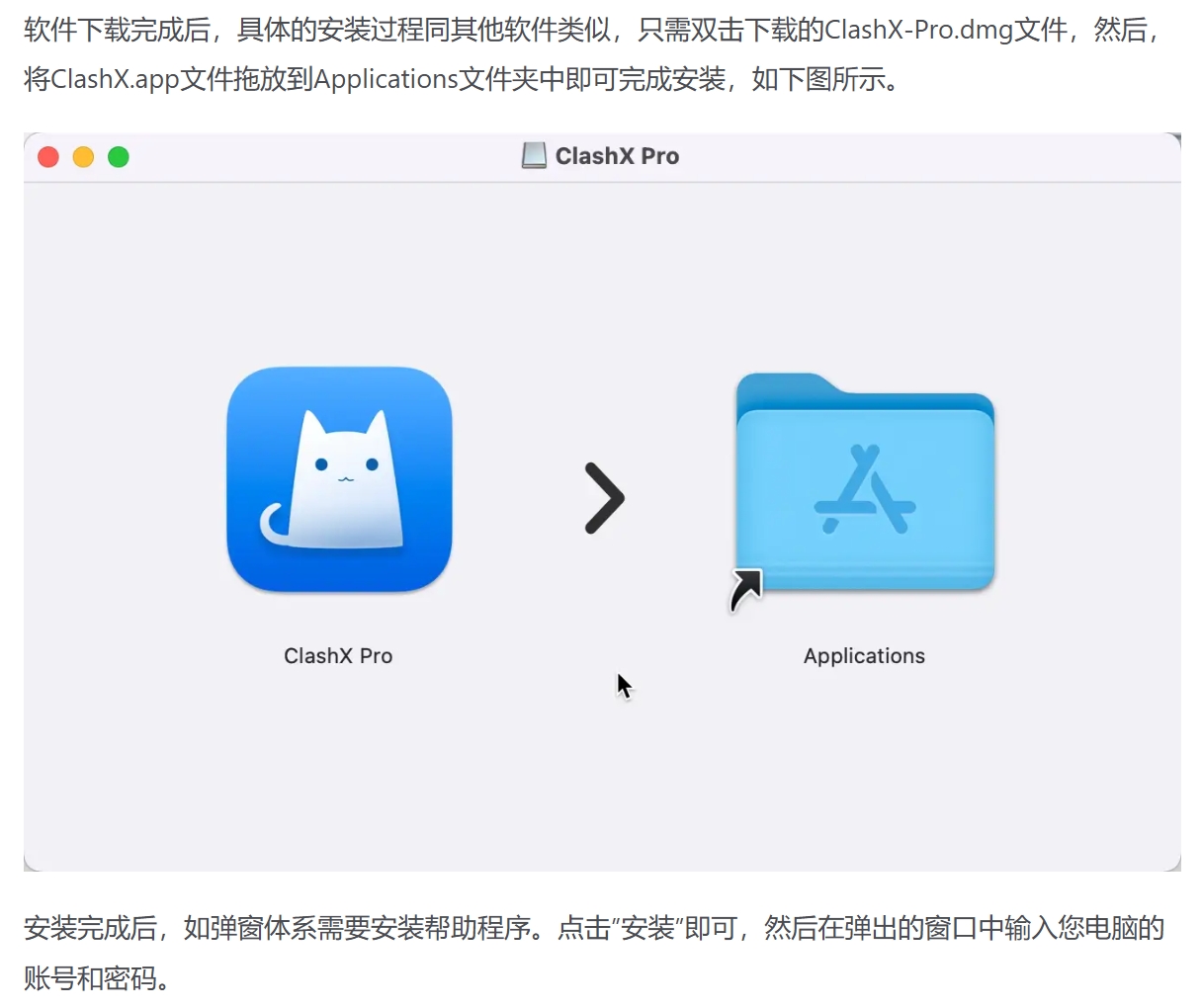
1.2 Install Software
- Double-click the downloaded
.dmgfile - Drag ClashX Pro to the Applications folder
- Wait for installation to complete
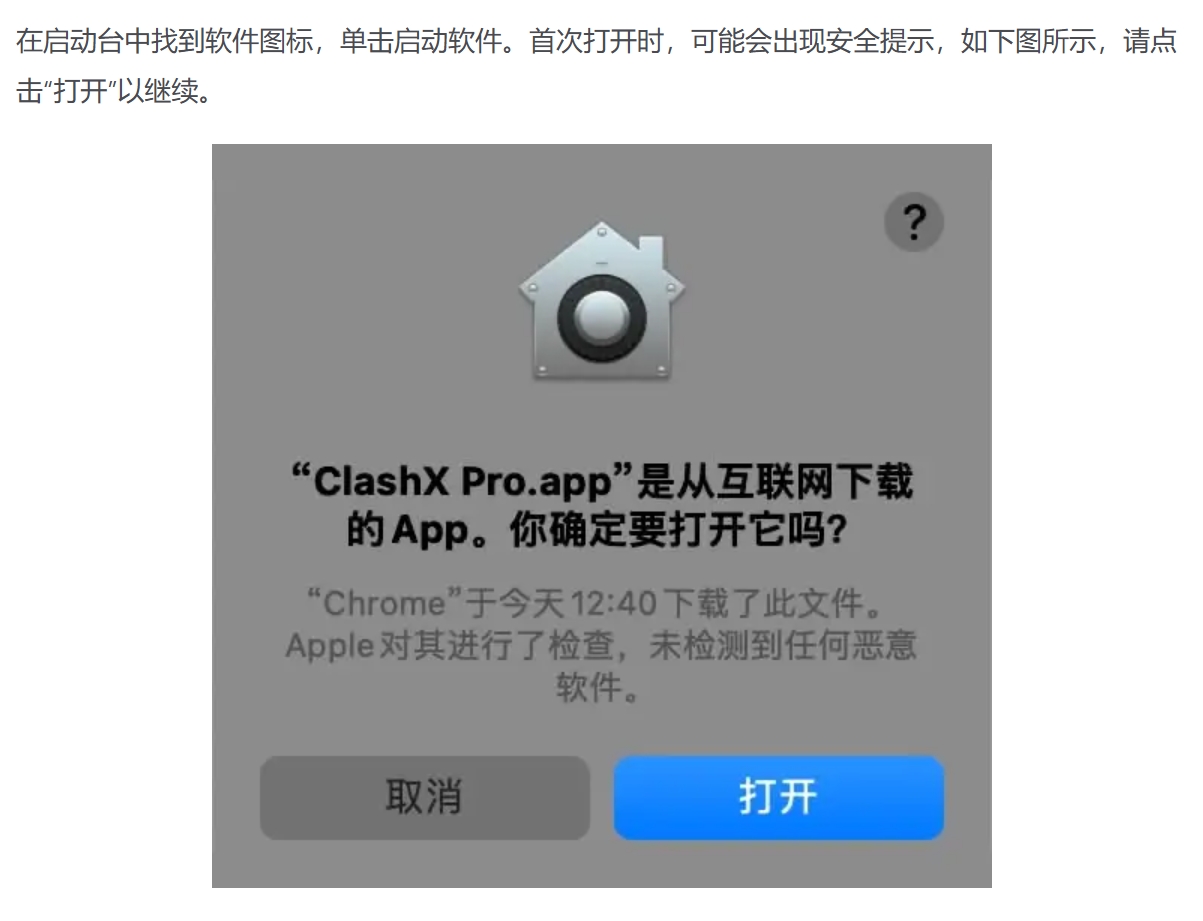
1.3 First Launch
- Launch ClashX Pro from the Applications folder
- System may show security warning, click "Open"
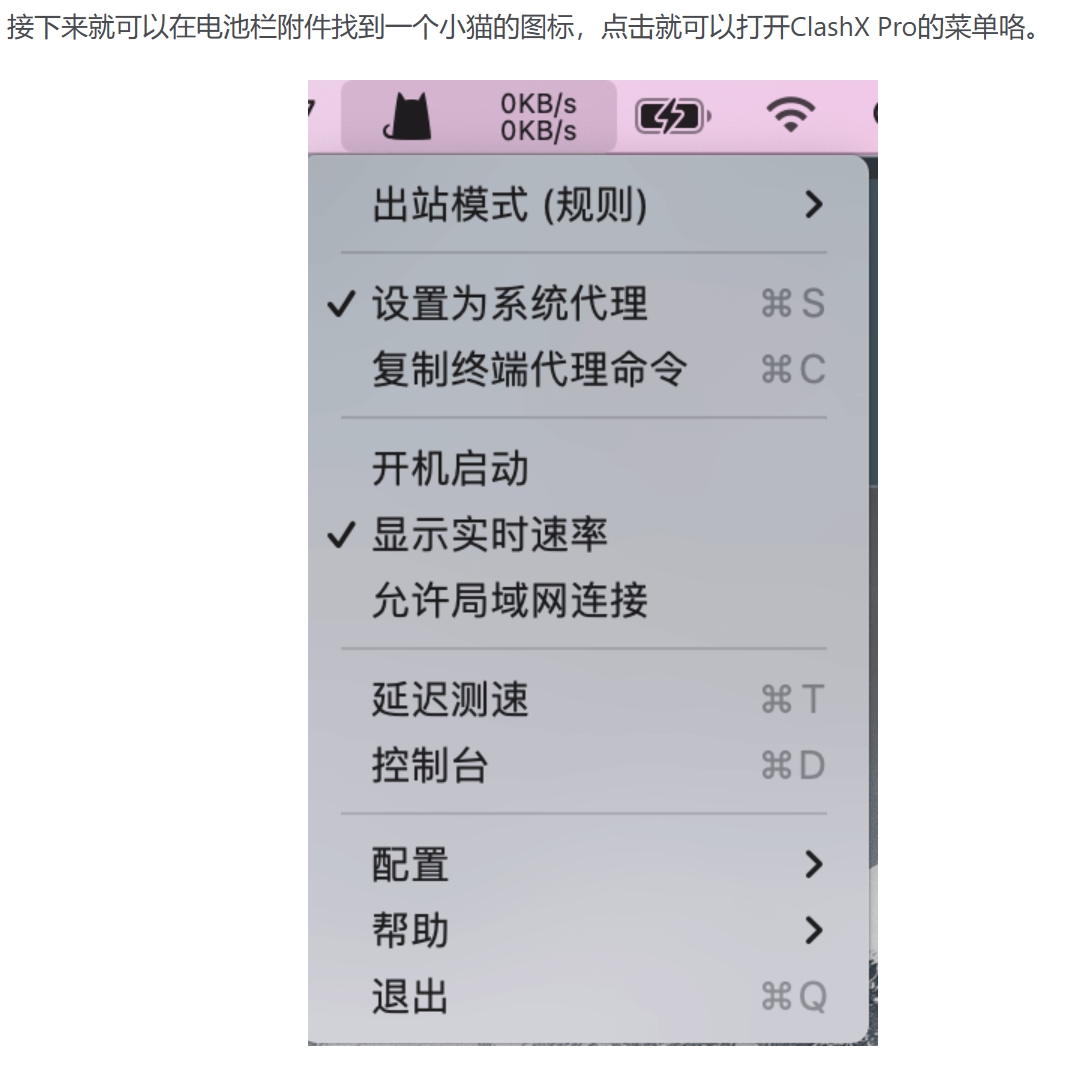
- Software will display an icon in the menu bar
🌐 Step Two: Import Configuration
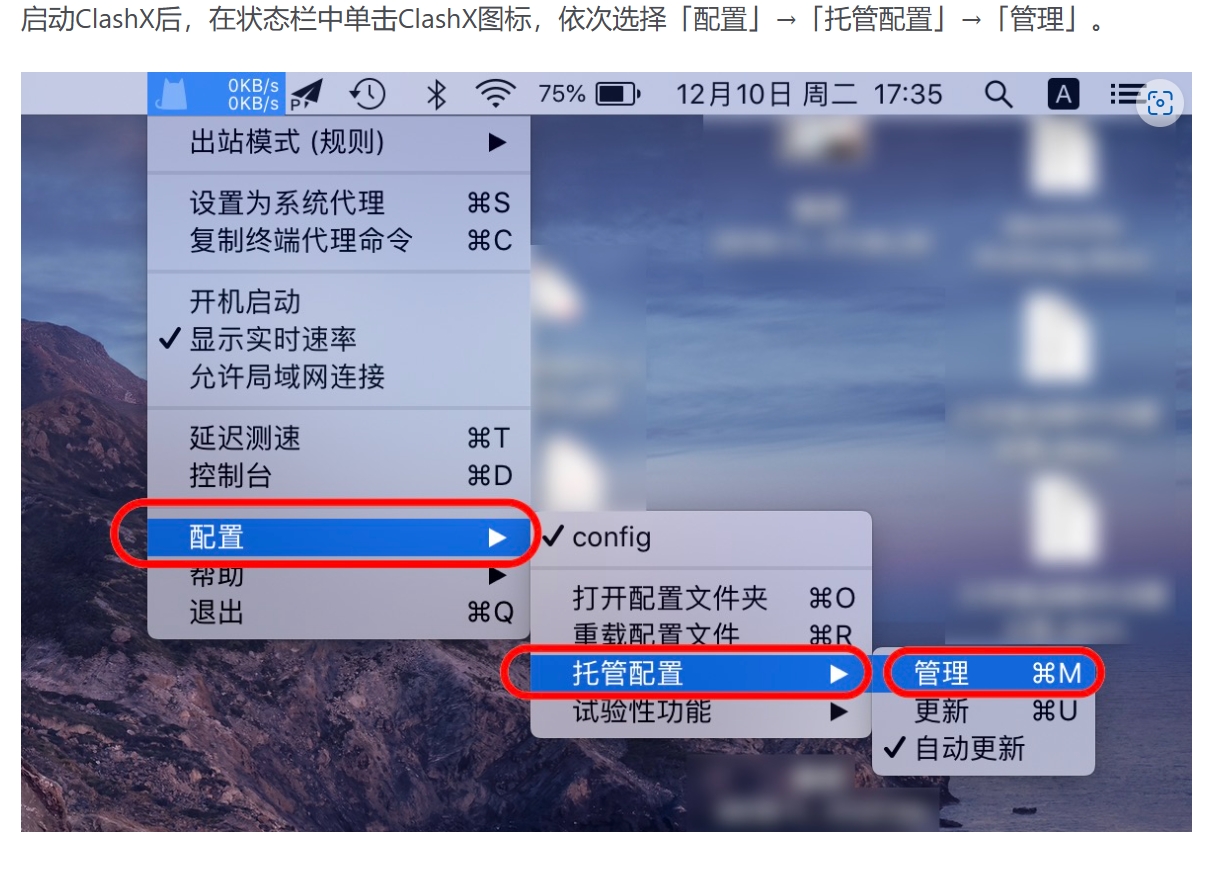
2.1 Access Configuration Menu
- Click the ClashX Pro icon in the menu bar
- Select "Config" option
- Enter configuration management interface
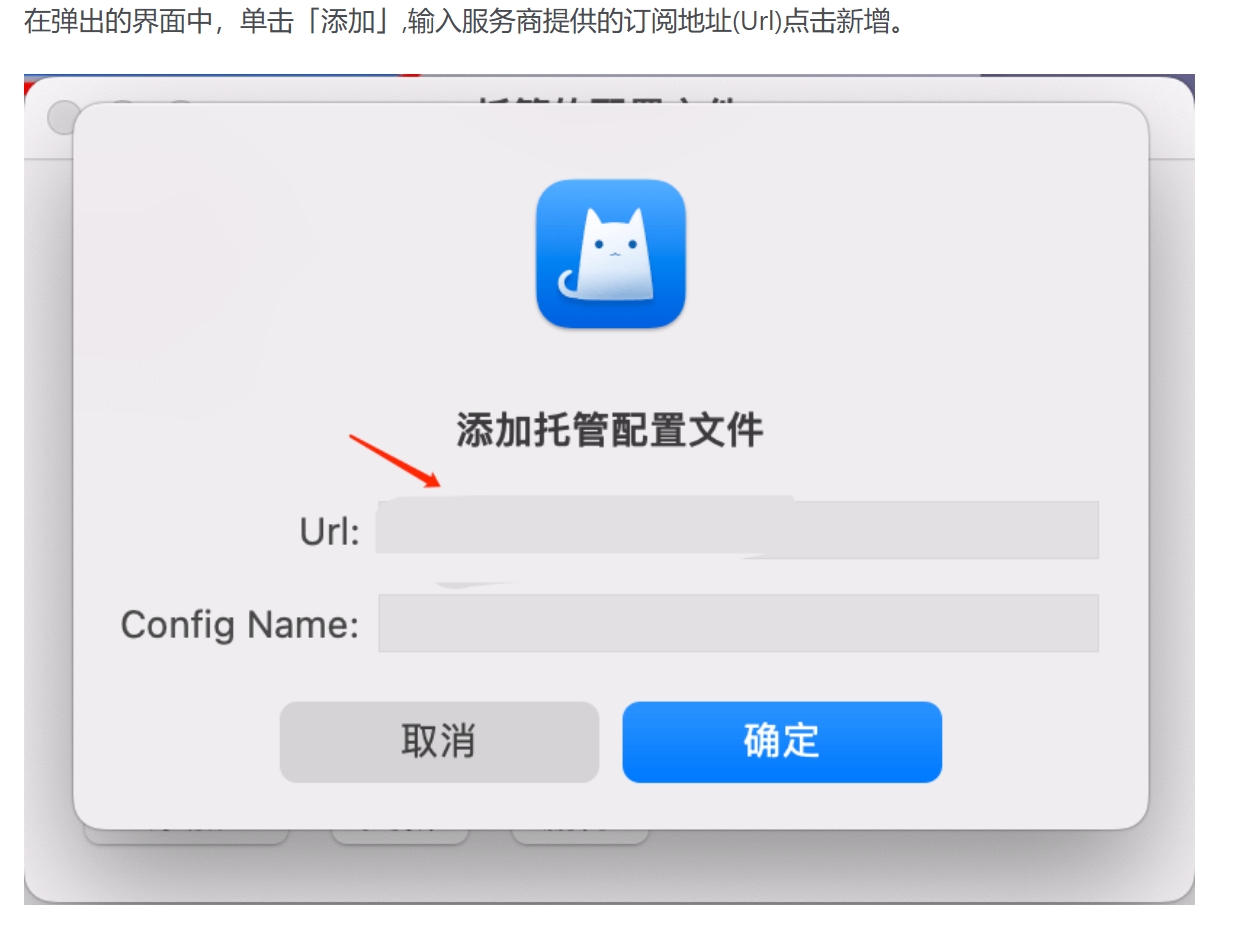
2.2 Add Subscription Link
- Click "Add" button in the configuration interface
- Select "Import from URL"
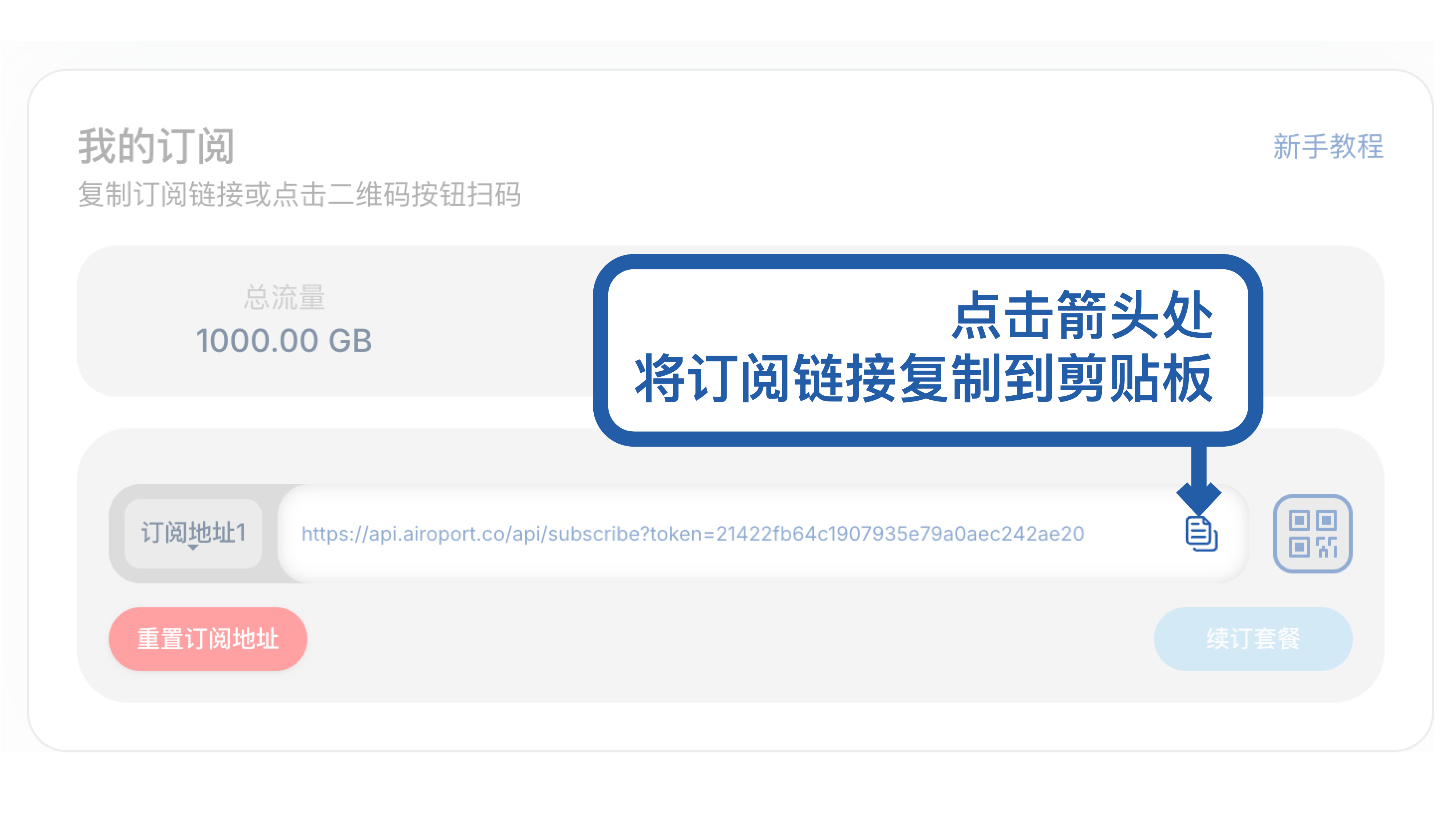
- Paste your subscription link
2.3 Configuration Verification
- Wait for configuration file download to complete
- System will automatically verify configuration file format
- Confirm configuration information is correct
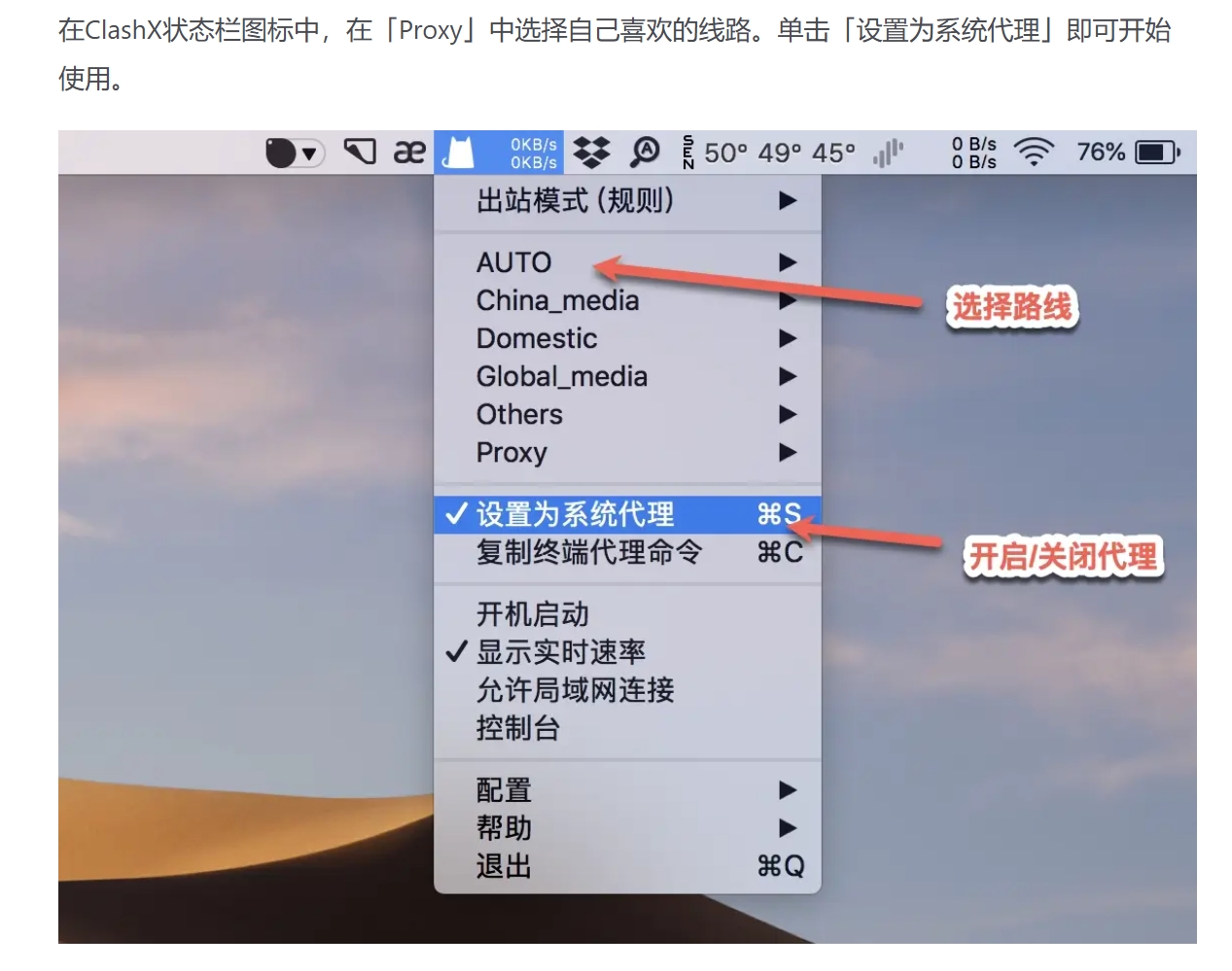
2.4 Enable Proxy
- Select the newly imported configuration file
- Click "Set as System Proxy"
- Proxy service is now officially enabled
🚀 Step Three: Advanced Configuration
3.1 Node Selection
- Auto Select: Let software automatically choose optimal node
- Manual Select: Manually select specific node as needed
- Load Balancing: Distribute traffic across multiple nodes
3.2 Rule Configuration
- Global Mode: All traffic through proxy
- Rule Mode: Traffic splitting according to preset rules
- Direct Mode: No proxy usage
3.3 Custom Rules
# Example rule configuration
rules:
  - DOMAIN-SUFFIX,google.com,PROXY
  - DOMAIN-SUFFIX,github.com,PROXY
  - DOMAIN-KEYWORD,google,PROXY
  - GEOIP,CN,DIRECT
📊 Feature Details
🔍 Real-time Monitoring
| Feature | Description |
|---|---|
| Traffic Statistics | View real-time upload/download speed and cumulative traffic |
| Connection Monitoring | Monitor current active connection count |
| Latency Testing | Test response latency of various nodes |
| Log Viewing | View detailed connection log information |
🛠️ Advanced Features
| Feature | Description |
|---|---|
| Auto Update | Automatically update subscription configurations at scheduled intervals |
| Auto Start | Automatically run when system starts |
| System Proxy | Automatically configure system proxy settings |
| Rule Editing | Customize traffic splitting rules |
❓ Frequently Asked Questions
🔧 Installation Issues
Q: Software cannot install or launch?
A: Solutions:
- Check if macOS version meets requirements
- Allow app to run in "System Preferences" → "Security & Privacy"
- Try right-clicking app icon and select "Open"
Q: Prompt "From unidentified developer"?
A: Solution steps:
- Hold Control key and click app icon
- Select "Open" from shortcut menu
- Click "Open" in the popup dialog
🌐 Connection Issues
Q: Cannot connect after importing configuration?
A: Checklist:
- ✅ Confirm subscription link is valid and not expired
- ✅ Check network connection is normal
- ✅ Verify configuration file format is correct
- ✅ Try switching to different nodes
Q: Slow speed or frequent disconnections?
A: Optimization suggestions:
- 🔄 Select nodes with lower latency
- 🎯 Adjust proxy mode (Rule/Global)
- 📊 Check local network conditions
- 🔧 Try different encryption protocols
⚙️ Configuration Issues
Q: How to update subscription configuration?
A: Update steps:
- Click menu bar icon
- Select "Config" → "Update"
- Wait for configuration file to auto-update
Q: How to backup configuration?
A: Backup method:
- Export current configuration file
- Save to a secure location
- Re-import when needed
💡 Best Practices
🎯 Usage Recommendations
-
Choose Proxy Mode Wisely
- "Rule Mode" recommended for daily use
- "Global Mode" for special needs
- "Direct Mode" for debugging
-
Regular Maintenance
- Update subscription configuration weekly
- Clean log files regularly
- Update software version timely
-
Security Considerations
- Use trusted proxy service providers
- Change passwords and configurations regularly
- Avoid usage on public networks
⚡ Performance Optimization
| Optimization Item | Recommendation |
|---|---|
| Node Selection | Choose geographically closer nodes with lower latency |
| Connection Limit | Adjust maximum connections according to needs |
| DNS Configuration | Use reliable DNS servers |
| Cache Settings | Adjust cache size appropriately |
🔗 Related Resources
📚 Official Documentation
🛠️ Recommended Tools
- Configuration Converter: Online Converter
- Rule Subscription: ACL4SSR Rules
- Node Testing: Built-in latency testing functionality
<EFBFBD> Last Updated: July 10, 2025 | 🛡️ Applicable Version: ClashX Pro 1.118.0
For questions or technical support, please refer to the FAQ section or contact relevant technical personnel.